
Backup
Ente provides automatic, continuous backup of your photos and videos with end-to-end encryption. Once configured, your precious memories are safely synced to Ente's cloud without any manual effort.
How backup works
Mobile backup (iOS and Android)
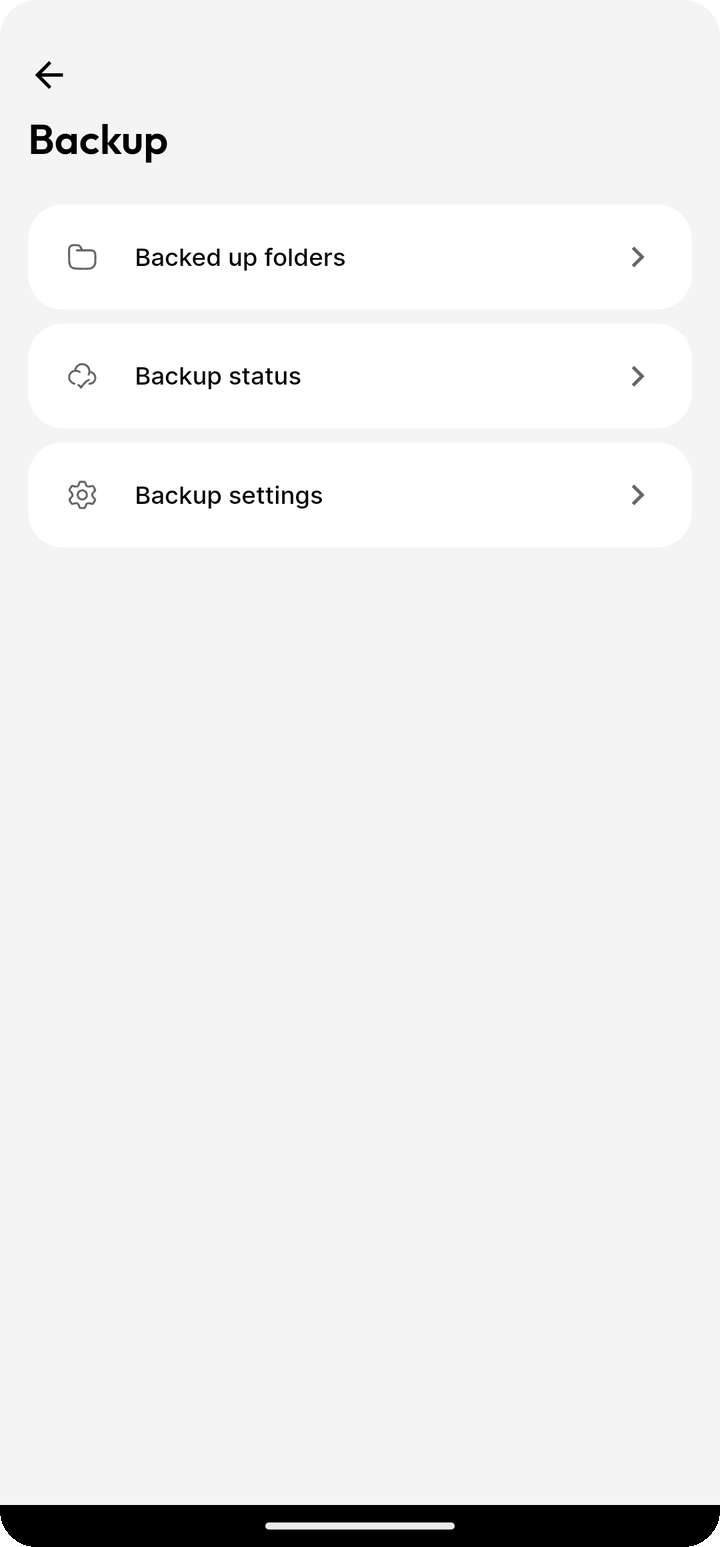
Ente will automatically backup any albums in your native photos app that you select for backup. The app runs in the background, and any new photos added to these albums (or any photos in these albums that were modified) will be automatically synced to Ente.
Key features:
- Background sync: New photos are uploaded automatically without needing to open the app
- Original quality: Photos and videos are backed up in their original quality with no compression
- Smart resumption: If backup is interrupted, it automatically resumes from where it left off
- Battery and data aware: By default, uploads happen over WiFi to save mobile data and battery
Desktop backup (Mac, Windows, Linux)
On desktop, you can use watch folders to automatically backup photos from specific directories on your computer. This creates a one-way sync from your computer to Ente.
Selecting albums to backup
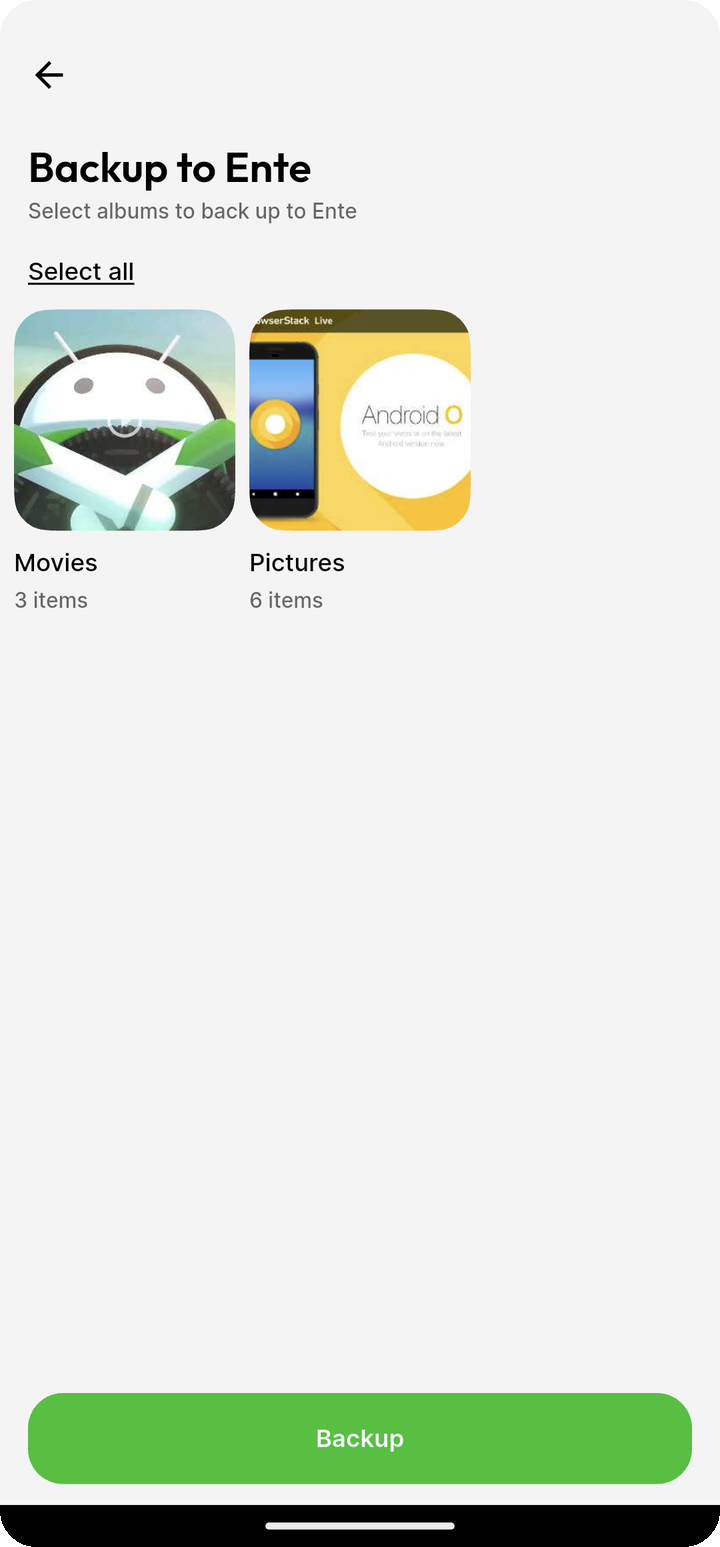
You can choose which albums should be backed up when you first sign up for Ente. If you change your mind later, or if you create a new album in your native photos app that you also want to backup, you can modify your choices:
On mobile:
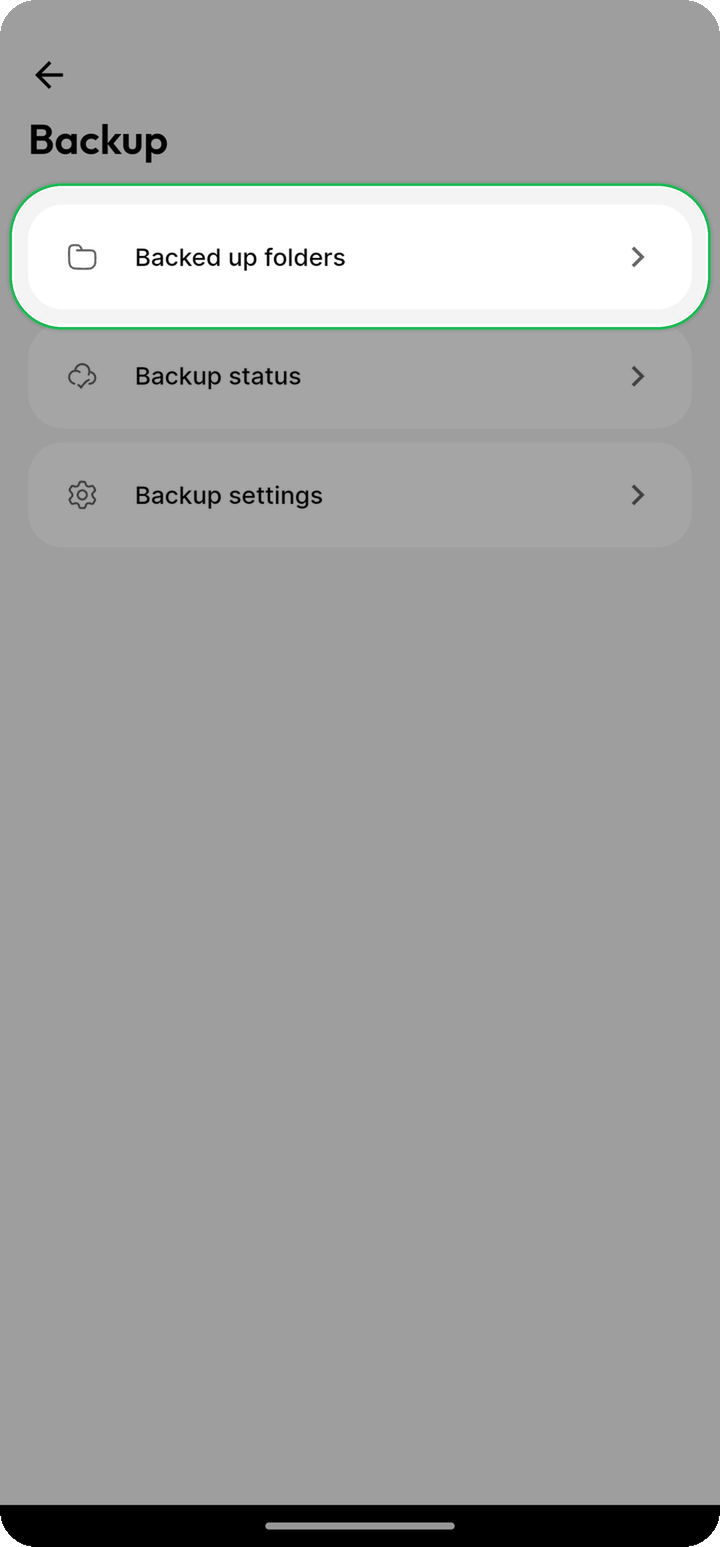
Open Settings > Backup > Backed up folders and select or deselect albums as needed.
On desktop: Use the watch folders feature to select directories to sync.
Background sync
Ente Photos supports seamless background sync so that you don't need to open the app to backup your photos. It will sync in the background and automatically backup the albums that you have selected for syncing.
NOTE
Background sync isn't currently consistent on iOS and on certain Android devices. We're actively working on a fix.
Day to day sync will work automatically. However, there are some platform specific considerations that apply:
iOS
Day-to-day backups run automatically on iOS. However, iOS gives Ente limited time to work when the app is not open. Your initial backup and large videos may need more time.
Backup mode
Backup mode helps large backups finish by keeping Ente open and the screen awake. The screen dims to save battery.
To use Backup mode:
- Connect your iPhone to power and stable WiFi.
- Open
Settings > Backup > Backup settings > Backup mode. - Tap Start backup mode and keep Ente open on screen. Switching apps pauses Backup mode.
You only need Backup mode for large uploads. New photos will continue to back up in the background afterwards.
The progress shown during Backup mode relates to the current upload session. It may restart when a new session begins. A reset counter alone does not mean your entire library is uploading again.
Large videos may not finish during the short time iOS gives Ente in the background. Ente will continue the upload when iOS gives it more time or when you open the app.
Do not swipe Ente away from the app switcher. iOS cannot wake Ente for a background backup after the app has been closed this way.
Ente uses silent notifications to ask iOS to start a short background backup. iOS does not deliver these notifications after you swipe the app away.
Android
On some Android versions, newly downloaded apps activate a mode called "Optimize battery usage" which prevents them from running in the background. So you will need to disable this "Optimize battery usage" mode in the system settings for Ente if you wish for Ente to automatically back up your photos in the background.
On Android versions 15 and later, if an app is in private space and the private space is locked, Android doesn't allow the app to run any background processes. As a result, background sync will not work.
Desktop
In addition to our mobile apps, the background sync also works on our desktop app through the watch folders feature.
Troubleshooting background sync
- On iOS, do not swipe Ente away from the app switcher.
- On Android, make sure that "Optimize battery usage" is not turned on in system settings for the Ente app.
Understanding backup behavior
What gets backed up
- All photos and videos in selected albums
- Original quality files (no compression)
- Photo metadata (EXIF, location, date/time)
- Live Photos (both photo and video components)
What happens when files are deleted
If a file is deleted from your native photos app, it will still remain in Ente. This is by design - on both iOS and Android, apps are not allowed to automatically delete users' photos without manual confirmation for security reasons.
If you want to delete a photo from Ente, you need to do it manually within the Ente app.
Duplicate handling
Ente automatically detects duplicates during upload. If you try to upload the same photo multiple times, Ente will recognize it and skip the duplicate, saving your storage space.
Learn more about how Duplicate detection works.
Backup only new photos
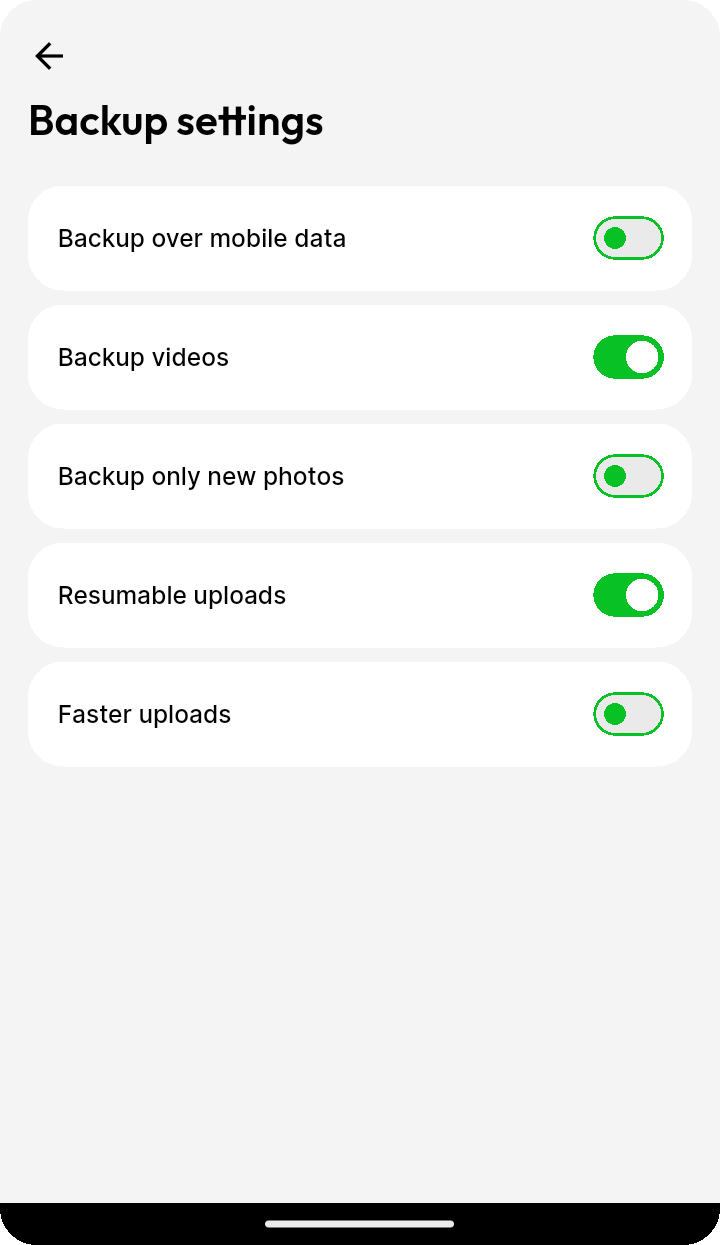
By default, Ente backs up your entire photo library from selected folders. If you only want to back up photos going forward - without uploading your existing library - you can enable Backup only new photos.
This option is available in two places:
- During signup/login: On the permissions screen, you can choose to back up only new photos instead of your full library.
- In settings: Open
Settings > Backup > Backup settingsand toggle on Backup only new photos.
What "new photos" means
When you select this option during onboarding, Ente backs up photos from the last 7 days onward. This ensures you have some recent photos available right away rather than starting with an empty library.
When you enable the toggle in settings after onboarding, Ente uses the current moment as the cutoff - only photos created from that point forward will be backed up.
The cutoff applies when Ente selects photos for automatic backup. Turning it on does not cancel uploads already queued. You can also manually select older photos to upload.
Folder selection prompt
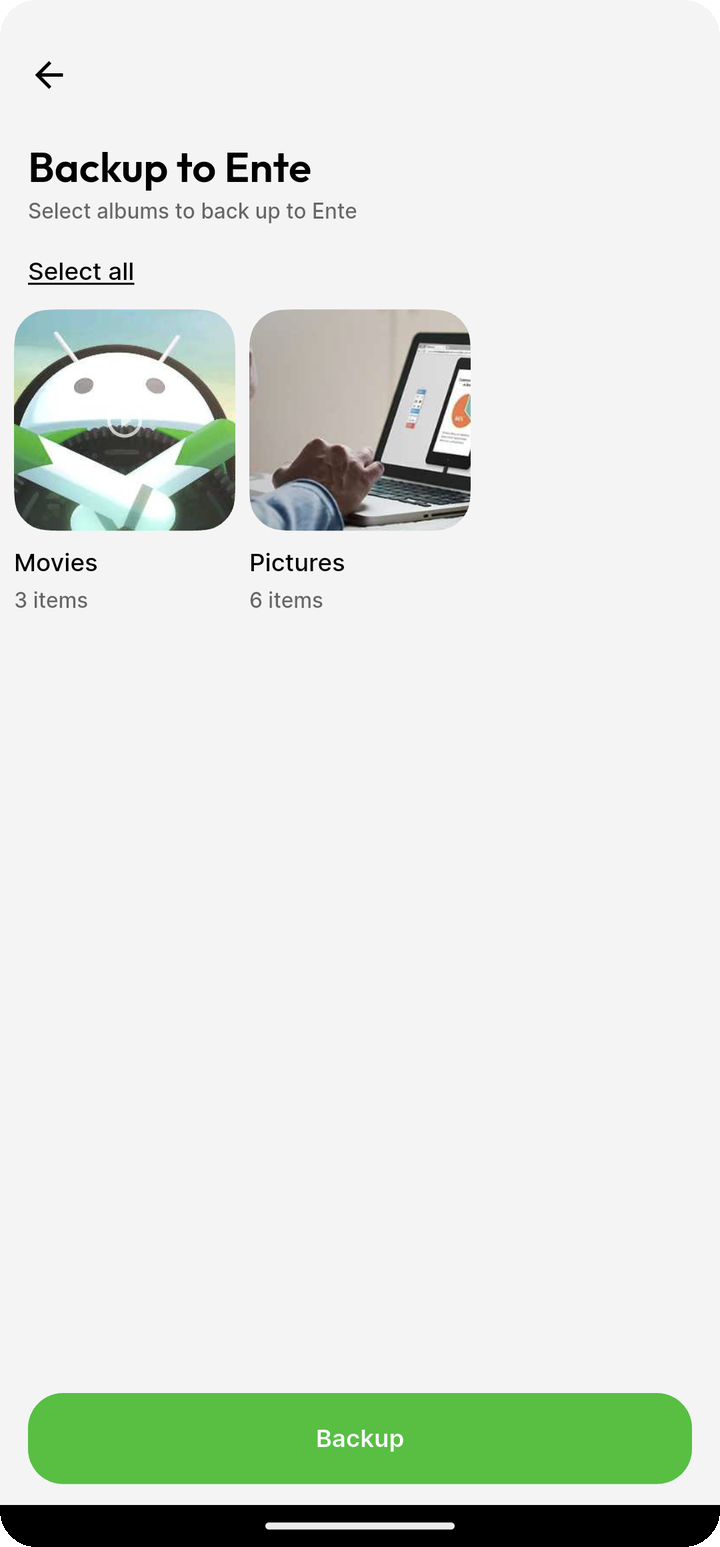
When you first enable this setting, Ente may prompt you to select which folders to back up:
- If you haven't selected any folders yet, tap Select folders to choose which folders to include.
- Tap Continue to proceed with your existing folder selection.
Disabling backup only new photos
To resume backing up all photos (including your existing library), toggle Backup only new photos off. Ente will then include all photos from selected folders in the next sync.
Use cases
- New devices: Back up only photos taken on a new device without uploading photos already backed up elsewhere.
- Privacy: Exclude older photos from your library while still keeping new ones backed up automatically.
- Storage management: Avoid uploading a large existing library while still protecting new memories.
Backup frequency
- Mobile: Background sync happens automatically. The exact timing depends on your device's operating system.
- Desktop: Watch folders continuously monitor for new files and deletions.
Related FAQs
- Can I backup only new photos without uploading my existing library?
- How does automatic backup work?
- How do I select which albums to back up?
- Why isn't background sync working?
- Do deleted photos on my device also delete from Ente?
- Understanding backup vs. sync
- Can I delete photos from my device after backing up?
- Will deleted photos be re-uploaded?
- What file formats can I backup?
- Does Ente compress my photos?
- Why are some photos not uploading?
- Troubleshooting backup and upload issues
Related topics
- Watch folders - Automatic desktop backup
- Duplicate detection - How automatic duplicate detection works
- Storage optimization - Tools to optimize your storage usage