
Deleting Photos
Ente uses a two-stage deletion system to protect against accidental data loss. When you delete a photo or video from your Ente account, it first moves to Trash where it stays for 30 days before being permanently deleted. This gives you time to recover accidentally deleted items.
How Deletion Works
When you delete a photo from your Ente account:
- Photo moves to Trash - The file is immediately removed from your albums and moved to a special Trash folder
- 30-day retention - The file remains in Trash for 30 days, giving you time to restore it
- Automatic permanent deletion - After 30 days, the file is permanently deleted and cannot be recovered
- Manual permanent deletion - You can also manually empty trash or delete specific items at any time
IMPORTANT
Items in Ente Trash count toward your Ente storage quota until permanently deleted.
Deleting Photos
On mobile
- Long press to select the photo(s) you want to delete
- Tap the trash icon in the action bar
- Confirm the deletion
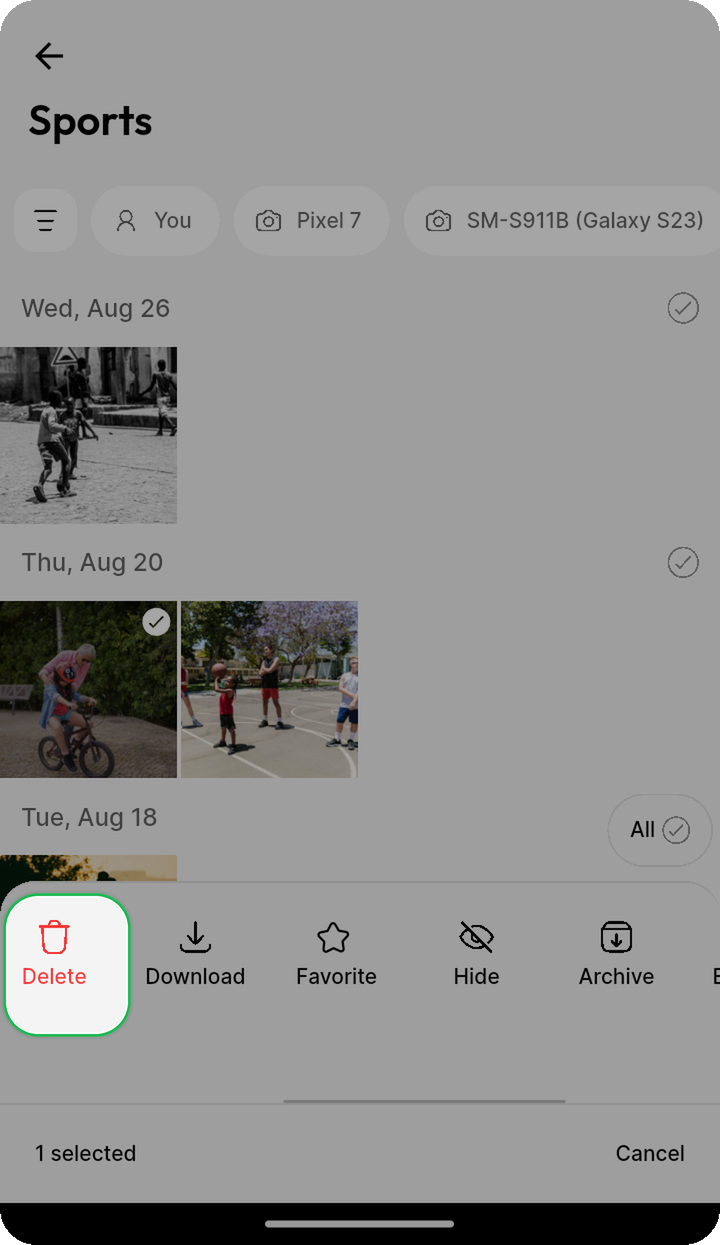
Photos deleted from your Ente account move to Trash. On Android 11 and newer, photos deleted from your device's gallery move to Android's system trash. Learn more about Android Device Trash.
On web/desktop
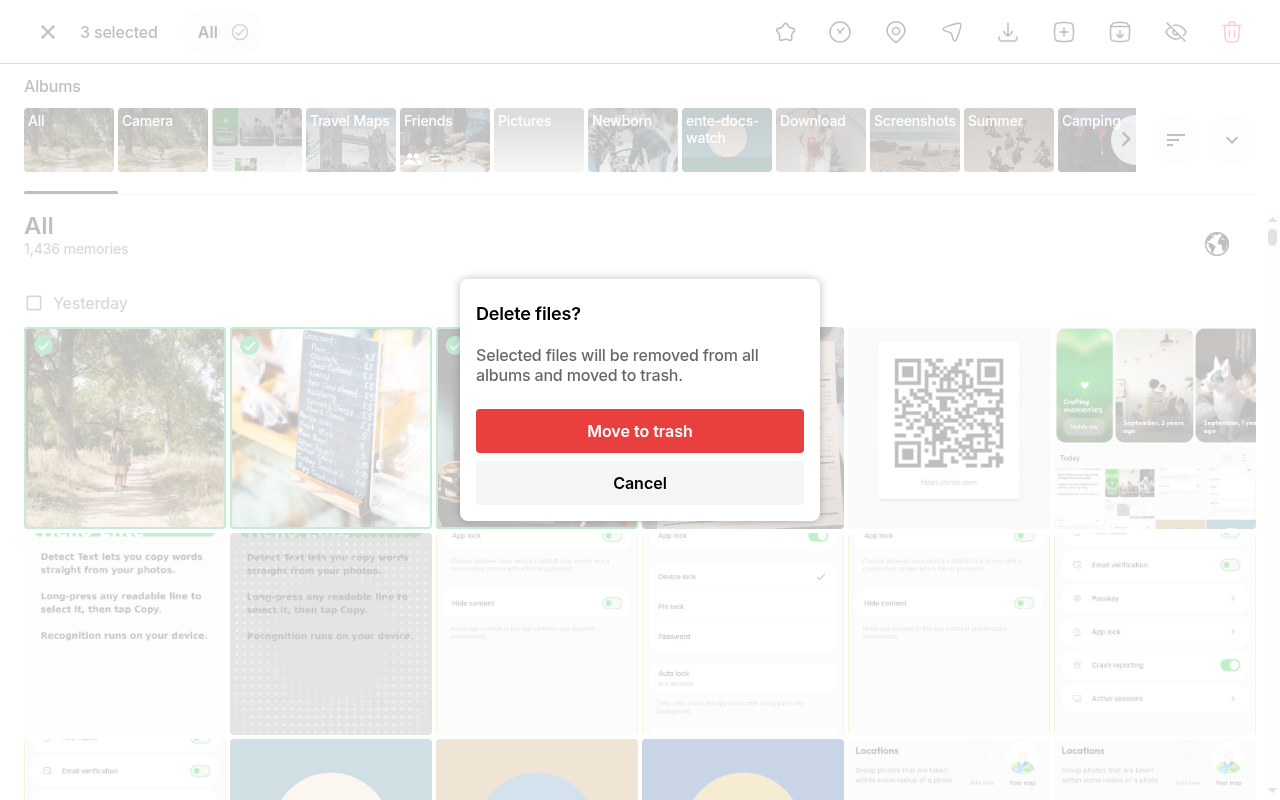
- Select the photo(s) you want to delete
- Click the trash icon or press the Delete key
- Confirm the deletion

The selected photos will be moved to Trash.
Bulk deletion
On mobile:
- Long press the first photo to enter selection mode
- Tap additional photos to select them
- Tap "Select all" to select all visible photos
- Tap the trash icon and confirm
On web/desktop:
- Click the first photo
- Hold Shift and click the last photo to select a range
- Or use Ctrl/Cmd+A to select all photos
- Press Delete key or click the trash icon and confirm
Photos deleted from your Ente account will be moved to Trash together.

The Trash Folder
What is Trash?
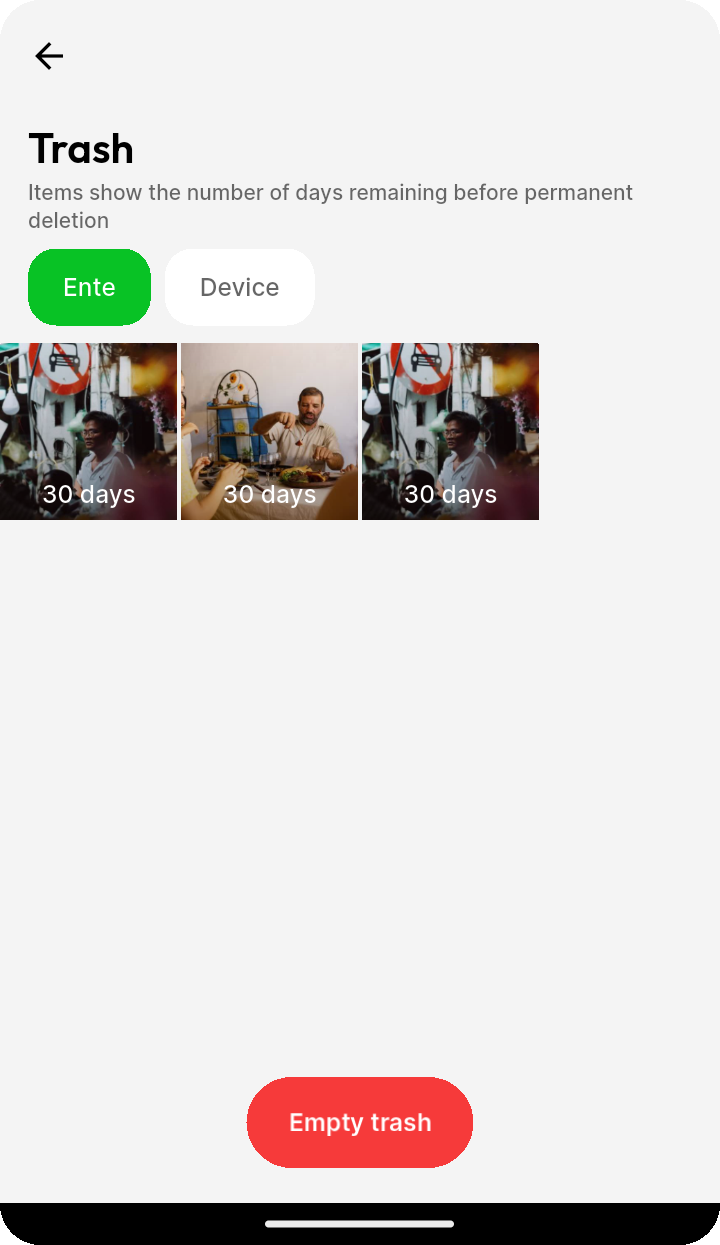
Trash is a special folder where deleted photos are held temporarily before permanent deletion. Think of it as a "recycle bin" for your photos.
For photos deleted from your Ente account:
- Photos remain for 30 days before automatic permanent deletion
- Photos are hidden from normal views (galleries, search, albums)
- Photos still count against your storage quota
- On web/desktop, photos appear in trash sorted by date deleted; on mobile, photos appear sorted by date created
- Photos show the remaining number of days until permanent deletion
- You can restore photos anytime within the 30-day window
- You can manually empty trash to free up storage immediately
Accessing Trash
On mobile:
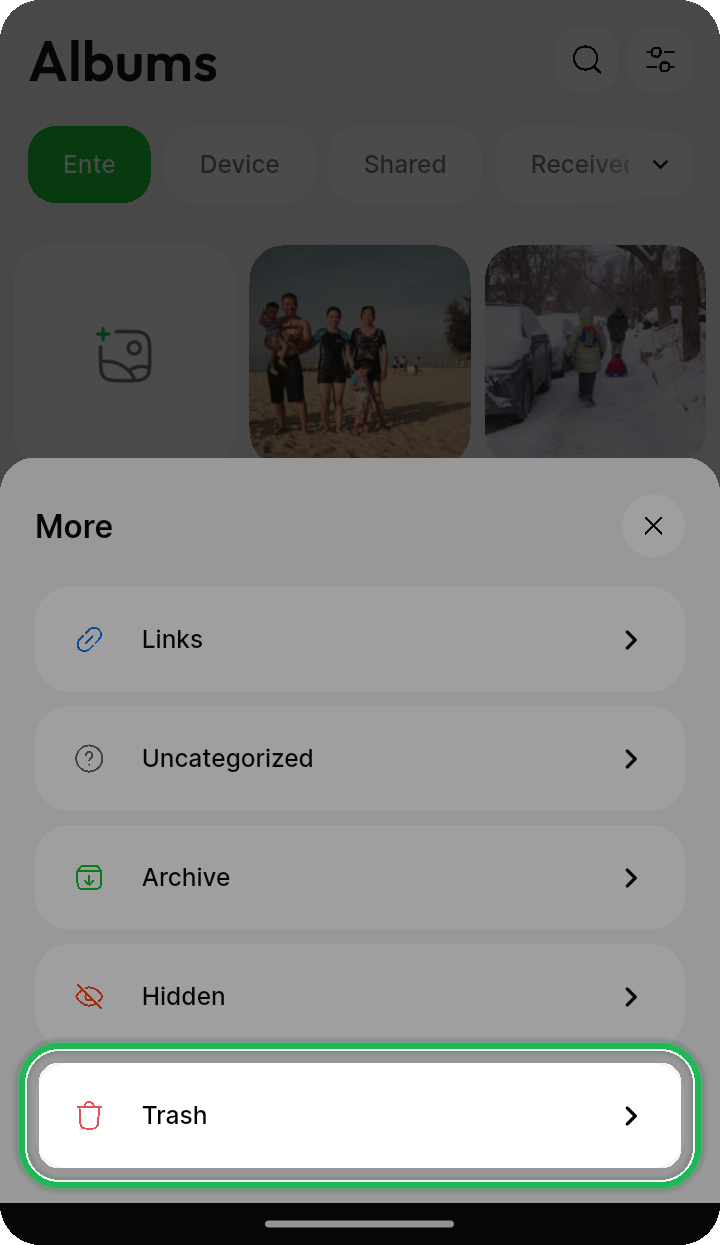
- Open the Albums tab
- Tap on 'v' icon at the right.
- Tap "Trash"
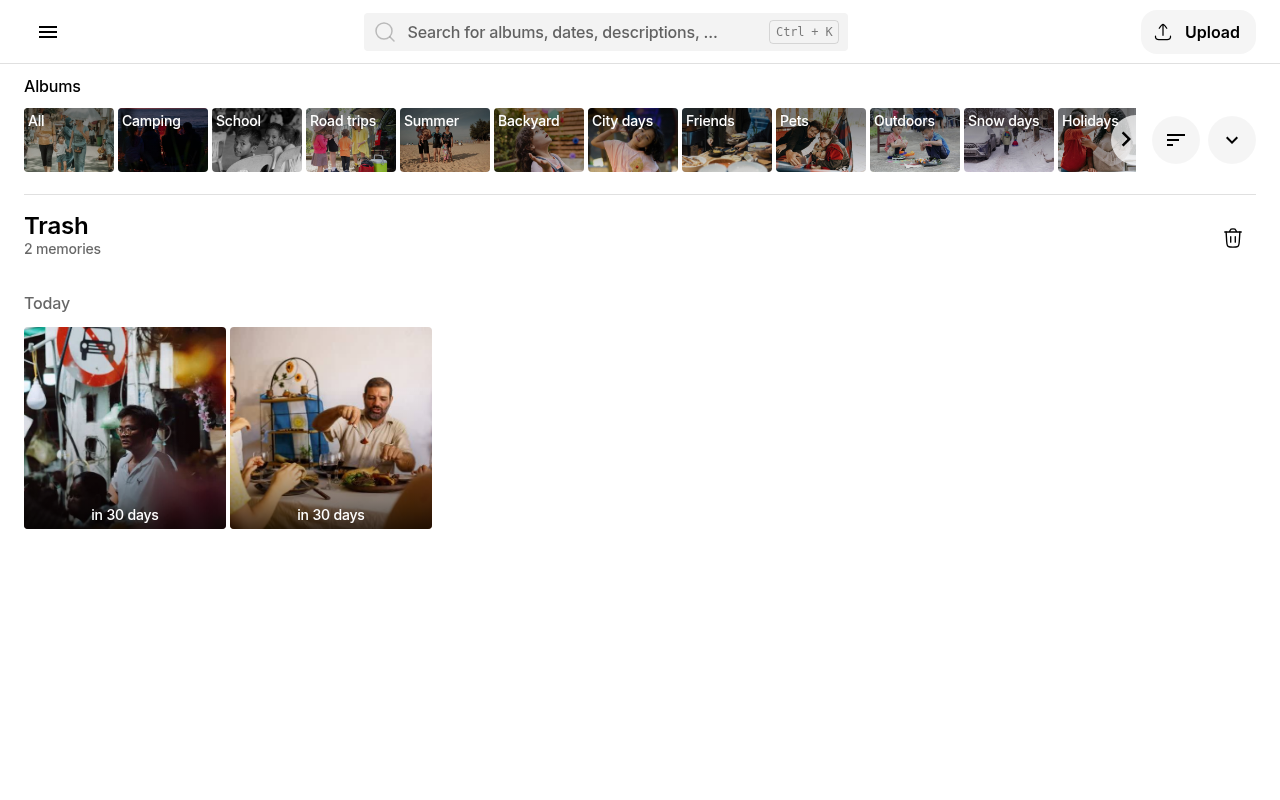
On web/desktop:
- Open Albums
- Select Trash
Android device trash
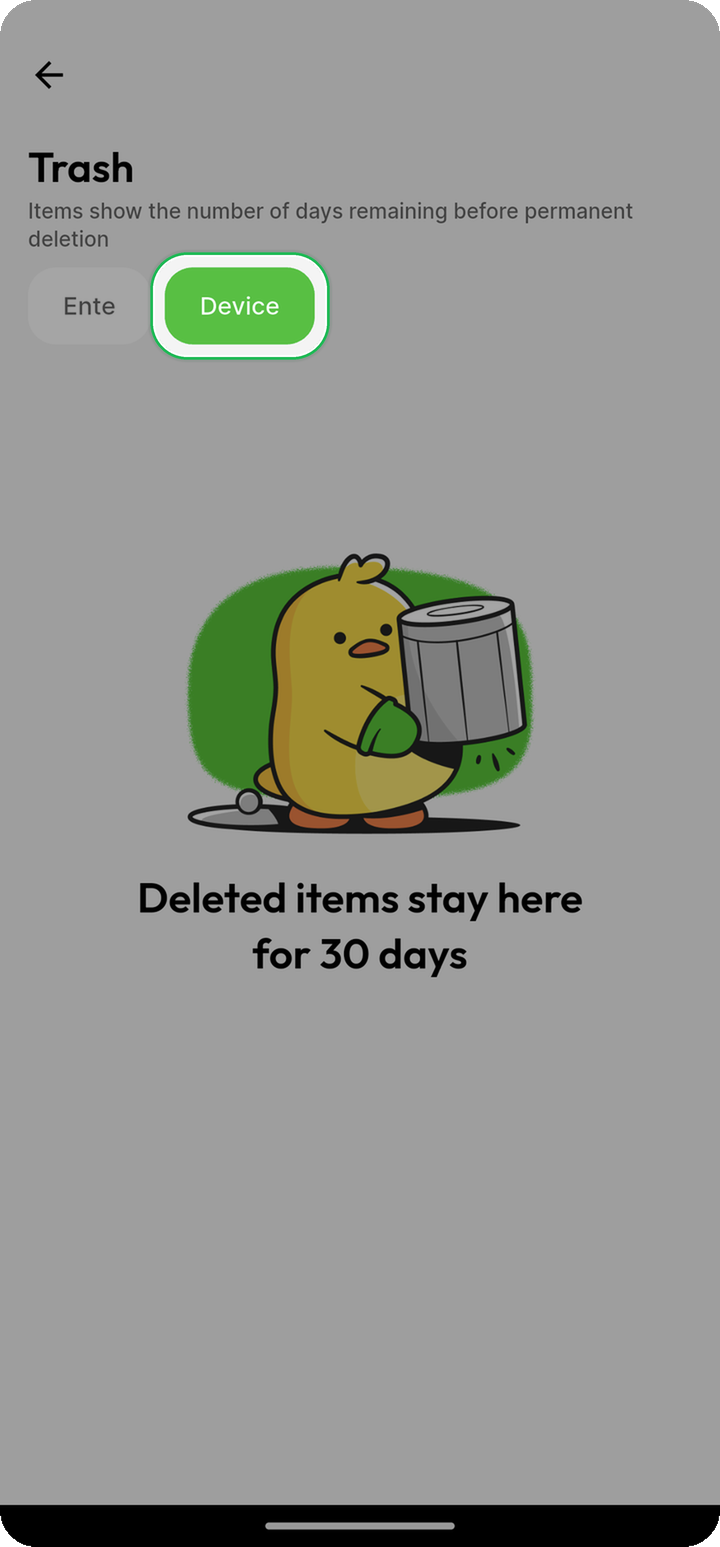
On Android 11 and newer, photos and videos deleted from your device's gallery through Ente Photos move to Android's system trash instead of being permanently removed immediately. To review or recover them in Ente:
- Open the Albums tab
- Tap the down-arrow icon on the right
- Open Trash
- Select Device at the top
- Select the photos you want to restore, then tap Restore
The Ente tab contains files deleted from your Ente account, while Device contains photos deleted from your device's gallery. Emptying either trash permanently deletes the items shown in that tab.
Photos in Android's system trash still take up space on your device. Each photo shows how many days remain before permanent deletion.
You can also restore photos that were never backed up. In gallery mode, tap the trash icon in Albums to open trash directly.
NOTE
On Android 10 and older, deleting photos from your device is permanent. Free up device space also removes backed-up photos permanently from your device on Android. Your backups remain in Ente.
Storage considerations
Items in Ente Trash are included in your storage quota calculation. If you need to free up storage space immediately, you have two options:
- Empty trash completely - Permanently deletes all items in trash
- Delete specific items - Permanently delete only selected items
Once files are permanently deleted, the storage space will be freed up and reflected in your account.
Learn more about Storage optimization.
Restoring Deleted Photos
If you accidentally deleted photos from your Ente account, you can restore them from Trash within 30 days. For photos deleted from your Android device, follow the Android Device Trash instructions above.
On mobile
- Open the Albums tab
- Tap on 'v' icon at the right.
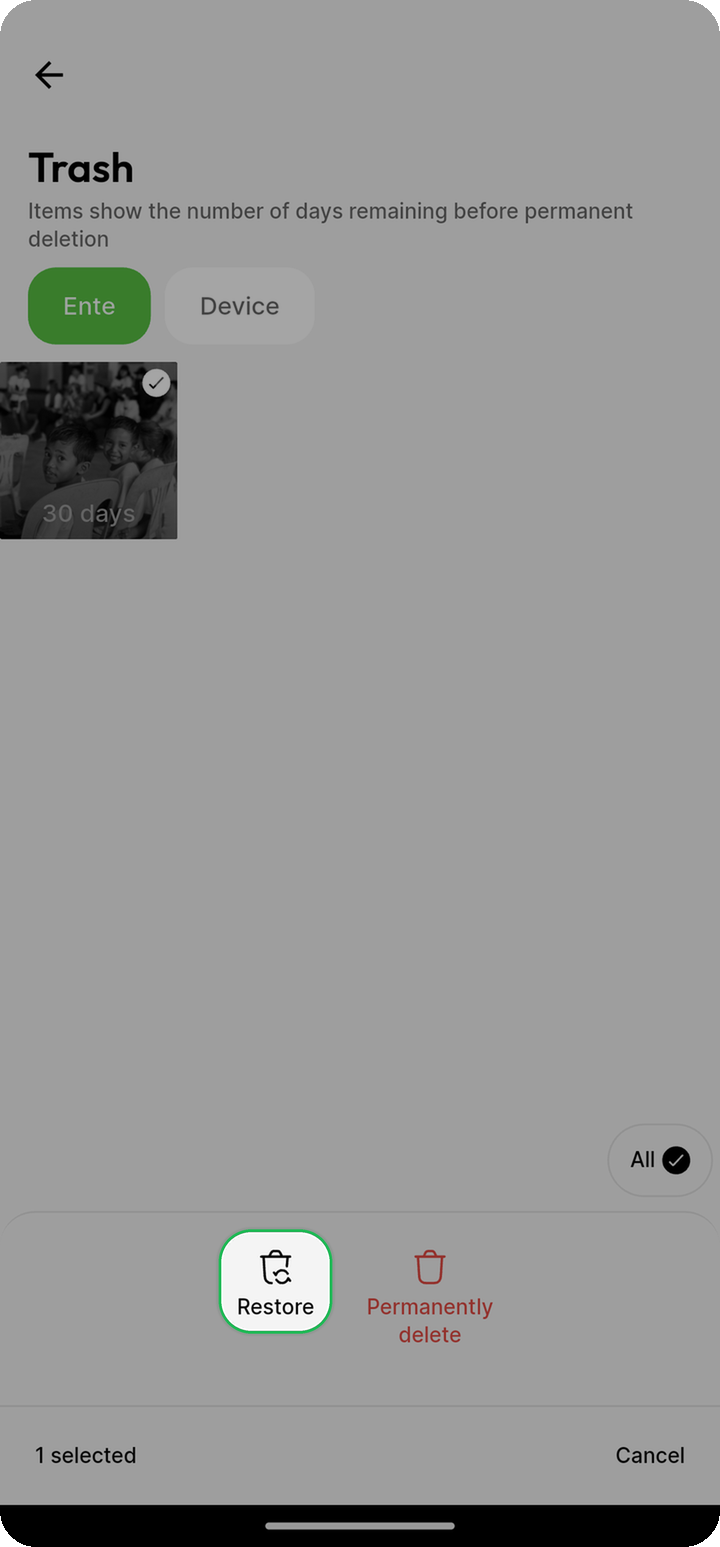
- Tap Trash, then select Ente if both tabs are shown
- Select the photos you want to restore
- Tap the "Restore" button
On web/desktop
- Open the sidebar menu
- Click on "Trash"
- Select the items to restore
- Click the "Restore" button

Restored photos will be moved to an album of choice.
Recovery time limit
IMPORTANT
You can only recover files from Ente Trash within 30 days of deletion. After 30 days, files are permanently deleted and cannot be recovered. This is an irreversible operation.
If you're unsure about deleting certain items, we recommend:
- Regularly checking your trash before the 30-day limit
- Using the Archive feature instead of deletion for photos you want to hide temporarily
- Exporting important photos as a backup before deleting
Permanent Deletion
To free up storage space immediately, you can permanently delete items from Trash. If the Ente and Device tabs are shown, select the trash you want to empty first.
WARNING
Permanently deleted items cannot be recovered. This action is irreversible.
Emptying all trash
On mobile and web/desktop:
- Open Trash
- Click/tap "Empty trash" or the trash icon
- Confirm that you want to permanently delete all items
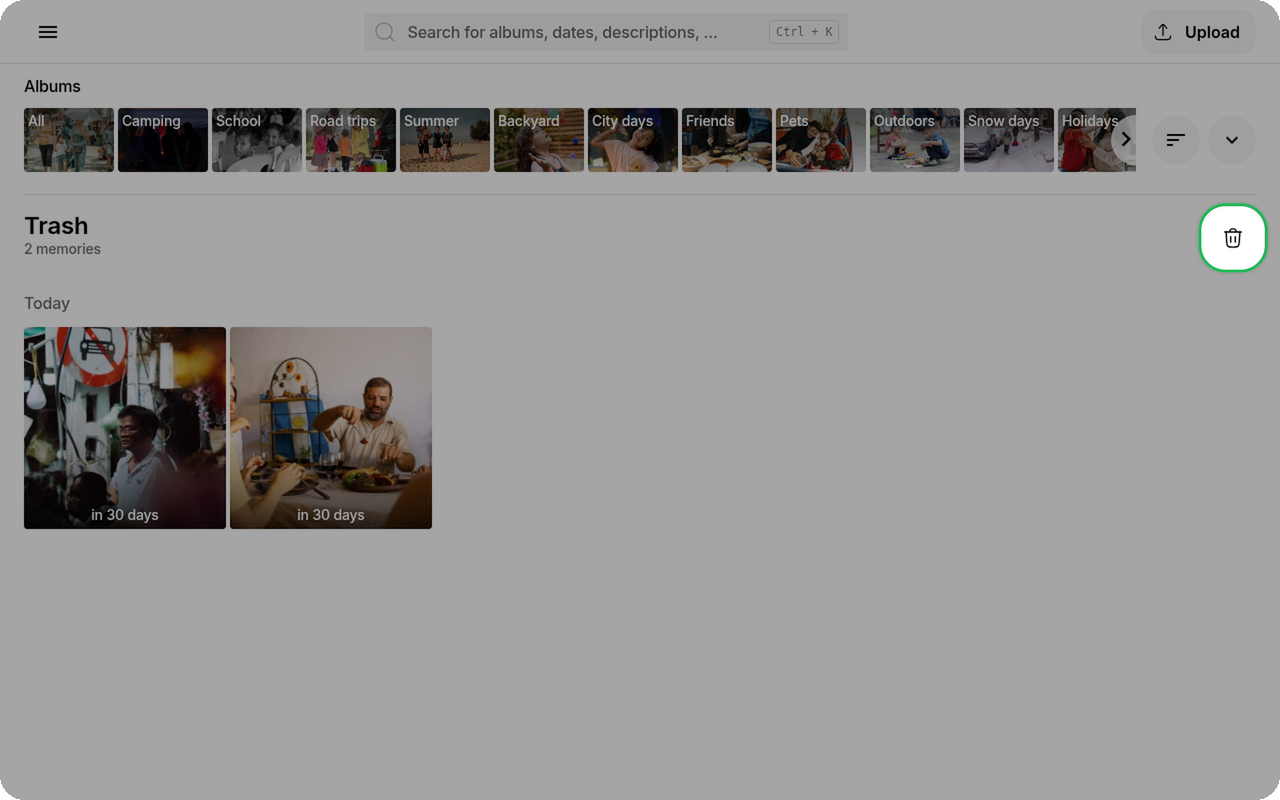
All items in the selected trash will be permanently deleted and storage space will be freed immediately.
Deleting specific items permanently
On mobile and web/desktop:
- Open Trash
- Select the items you want to permanently delete
- Choose "Delete permanently" from the menu
- Confirm the action
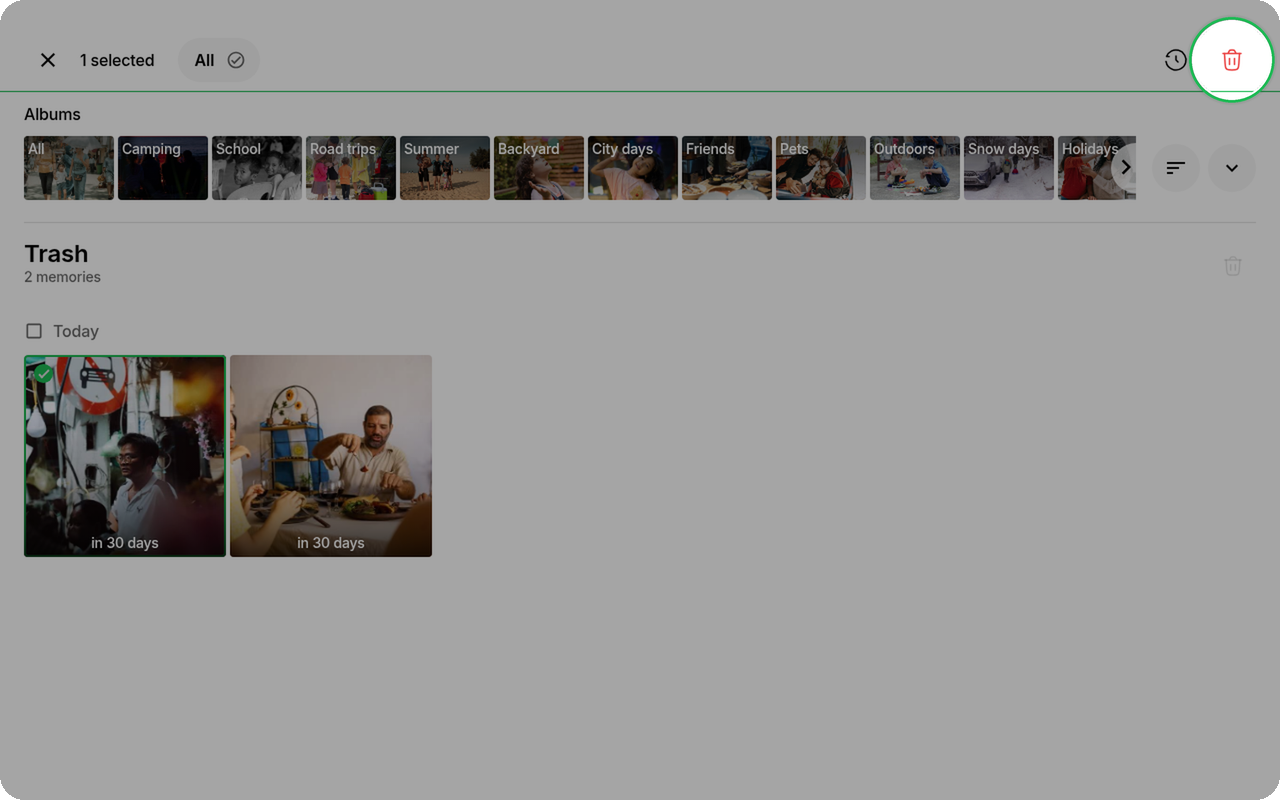
Only the selected items will be permanently deleted.
Special Deletion Scenarios
Deleting albums
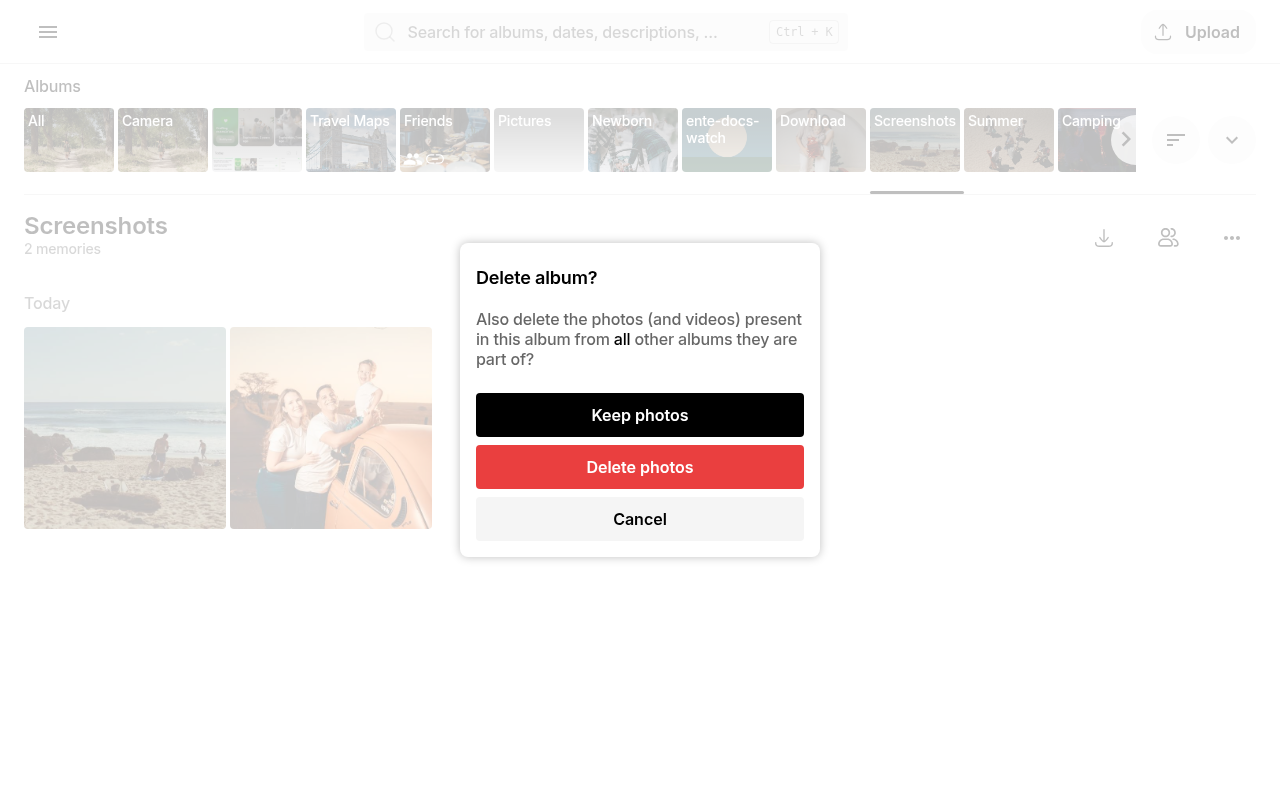
When you delete an album in Ente, you'll be given two options:
Option 1: Delete album and keep photos
- The album is removed from your library
- Photos that were exclusively in that album are moved to Uncategorized
- Photos that exist in other albums remain in those albums
Option 2: Delete album and photos
- Both the album and all photos in it are moved to Trash
- Photos will be permanently deleted after 30 days unless restored
Choose carefully based on whether you want to keep the photos or remove them entirely.
Deleting from collaborative albums
In collaborative albums, deletion permissions vary by role:
If you're a viewer:
- You cannot delete any photos from the album
- You can only view and download photos
If you're a collaborator:
- You can only delete photos that you uploaded
- When you delete your photo, it goes to your trash
- You cannot delete photos uploaded by others
If you're an admin:
- You can remove any photo from the album (including photos uploaded by others)
- You can only permanently delete photos you own
- Other participants' photos will be removed from the album but remain in their accounts
- You can suggest deletion for photos owned by others (see below)
If you're the album owner:
- You have all admin permissions, plus:
- You can manage link settings
- You can delete the entire album
When someone leaves: When a participant leaves or is removed from a shared album, any photos they uploaded are also removed from that album (but remain in their personal library).
Suggest deletion
Album owners and admins can suggest that other participants delete their photos from shared albums. This helps curate shared albums while respecting photo ownership.
How suggest deletion works:
- Open a shared album where you are owner or admin
- Select photos owned by other participants
- Tap the suggest deletion action
- Confirm the suggestion
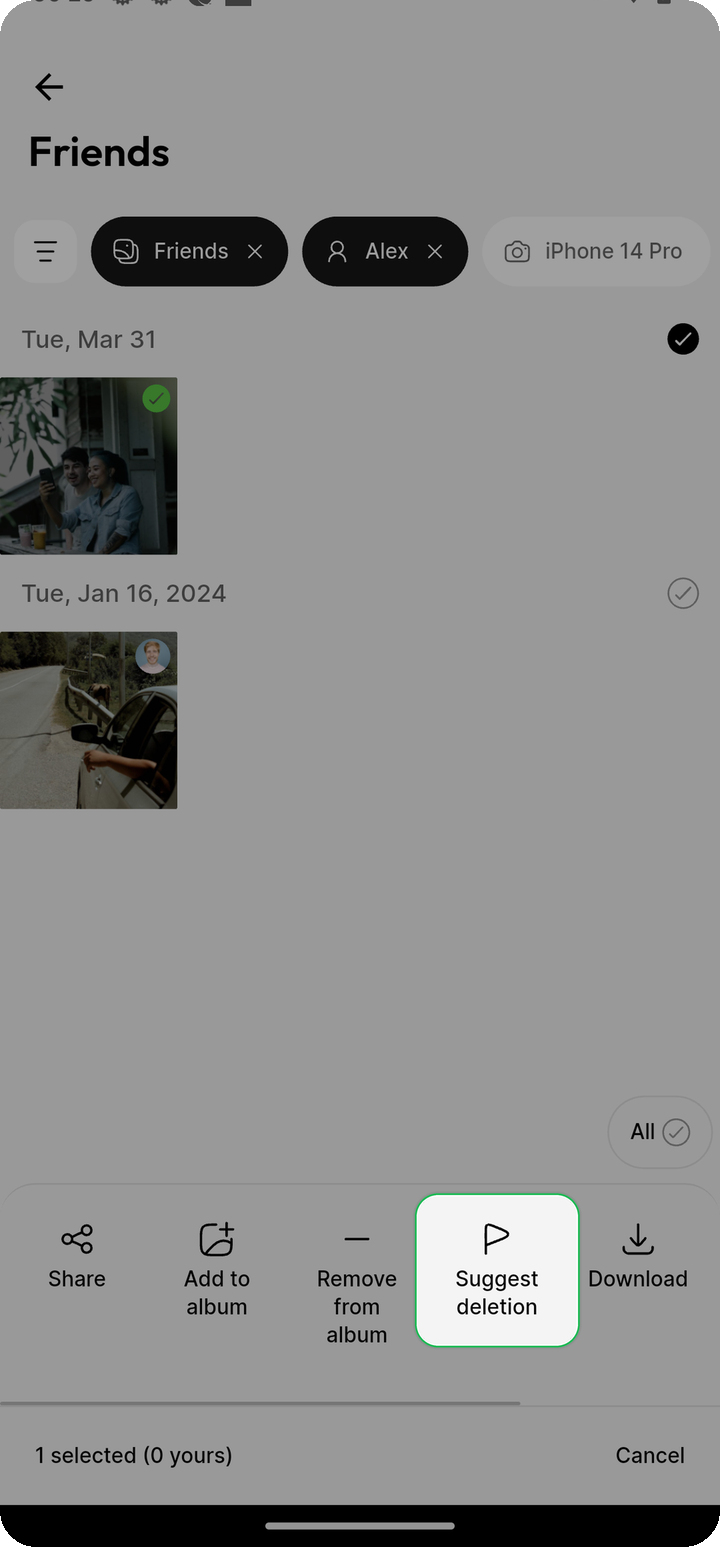
What happens:
- Photos are immediately removed from the album
- Photo owners receive the suggestion in their Delete Suggestions queue
- Photo owners can review suggestions in
Settings > Backup > Free up space > Delete suggestions - Photo owners can accept (delete) or reject (keep) each suggestion
This is useful for:
- Filtering blurry or duplicate photos after a group trip
- Curating event albums by suggesting removal of low-quality shots
- Helping participants identify photos they might want to delete
NOTE
Suggest deletion is currently available on mobile apps only.
Learn more in the collaboration guide.
Shared photos
You cannot permanently delete photos that someone else owns and shared with you. Only the owner of a photo can permanently delete it from Ente.
If someone has shared an album with you and you want to stop seeing it:
- Leave the shared album, OR
- Archive the shared album to hide it from your main view
Learn more about Sharing and collaboration.
Device deletion does not sync
IMPORTANT
If you delete a photo from your device's native photos app (iOS Photos, Google Photos, etc.), it will not be automatically deleted from Ente.
This is by design for two reasons:
- Safety: Prevents accidental loss of your backed-up photos
- Platform restrictions: iOS and Android don't allow apps to automatically delete users' photos without manual confirmation
If you want to delete a photo from Ente, you must do it manually within the Ente app.
Watch folder deletion
On desktop, if you delete a file from a watched folder, the corresponding photo in Ente is moved to Uncategorized, not Trash.
This prevents accidental deletion when reorganizing files on your computer. If you want to delete the photo from Ente, you must delete it from within the Ente app.
Related topics
- Uncategorized - Where photos go when removed from all albums
- Archive - Hide photos without deleting them
- Storage optimization - Tools to manage storage usage
- Watch folders - Automatic desktop backup behavior
Related FAQs
Basic Deletion:
- How do I delete photos in Ente?
- How do I delete multiple photos at once?
- What happens when I delete an album?
Trash and Recovery:
- How do I restore deleted photos?
- How do I permanently delete photos or empty trash?
- Does trash count against my storage?
- Can I recover files after 30 days in trash?
Special Cases:
- Can I delete photos that are shared with me?
- Do deleted photos on my device also delete from Ente?
- What happens to deleted photos in collaborative albums?
- What is suggest deletion?
- How do I review delete suggestions?
Troubleshooting: