
App lock
App lock adds a local protection layer to Ente Photos, so the app requires authentication when opened.
Enable app lock
On mobile: Open Settings > Security > App lock, then turn on App lock.
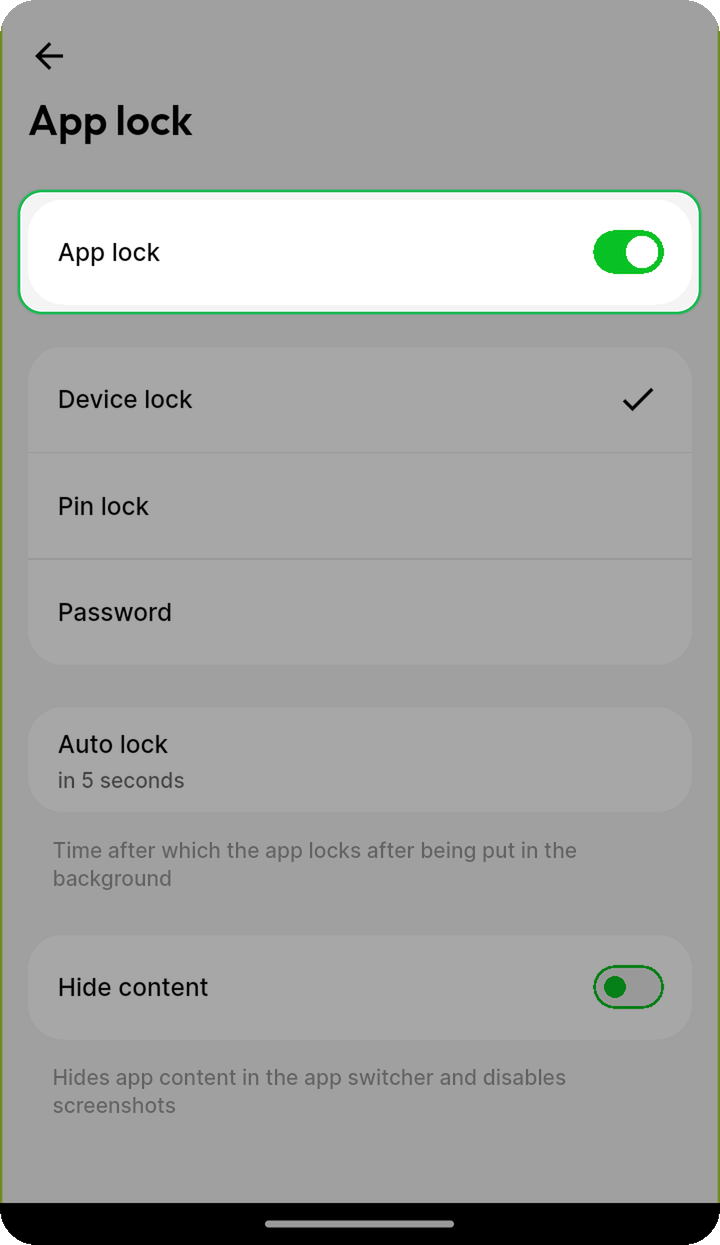
On desktop: Open Settings > Preferences > App lock, then turn on App lock.
Lock methods
Choose from the following lock methods:
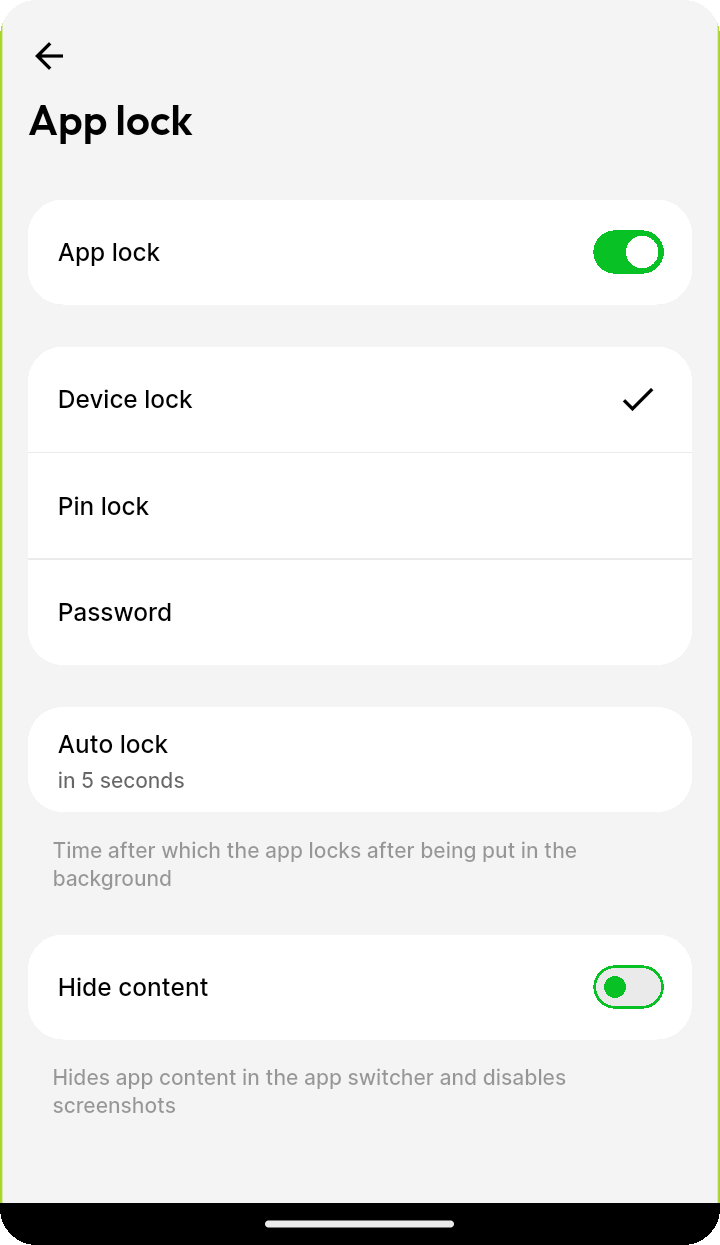
- Device lock: Face Recognition, Fingerprint, or your device passcode/password.
- PIN lock: Set a custom PIN for Ente Photos.
- Password lock: Set a custom password for Ente Photos.
On desktop, Device lock is currently available only on macOS.
Note: If you log out of Ente Photos, the device lock will be reset.
Auto lock
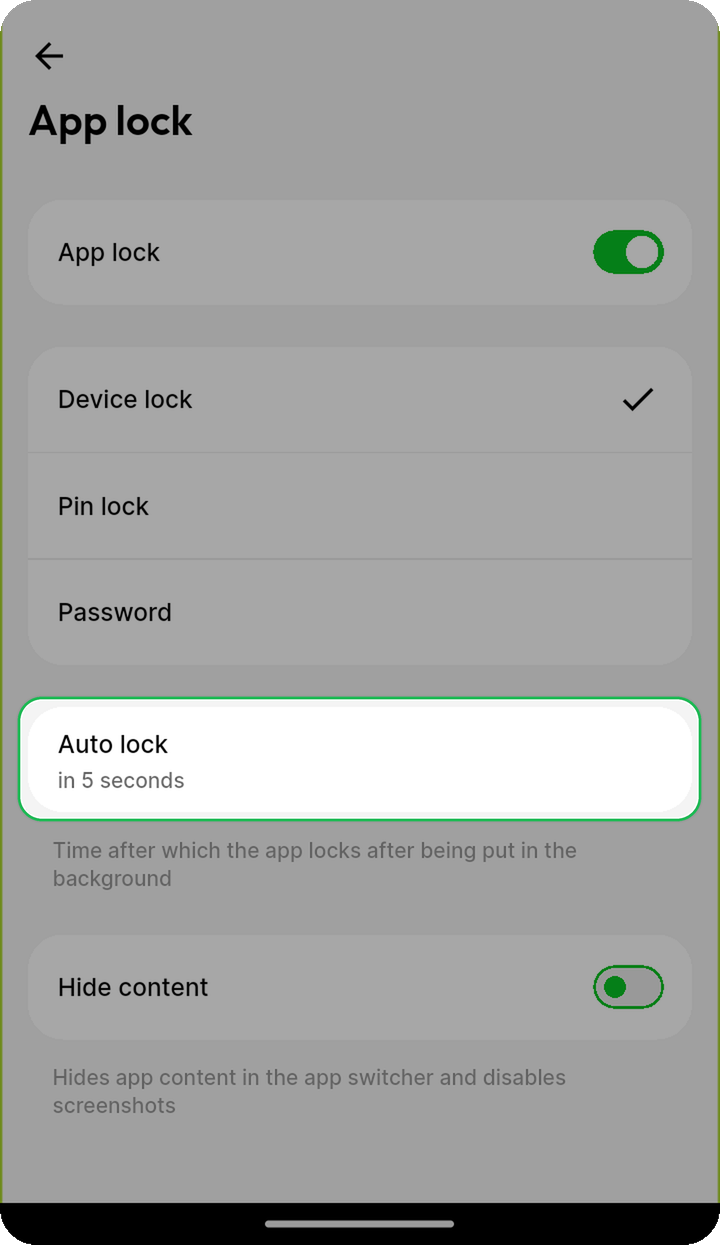
Configure Auto lock to choose when Ente Photos locks after being put in the background: Immediately, 5s, 15s, 1m, 5m, or 30m.
Hide content
Enable Hide content to hide Ente Photos content in the app switcher (and disable screenshots on Android).
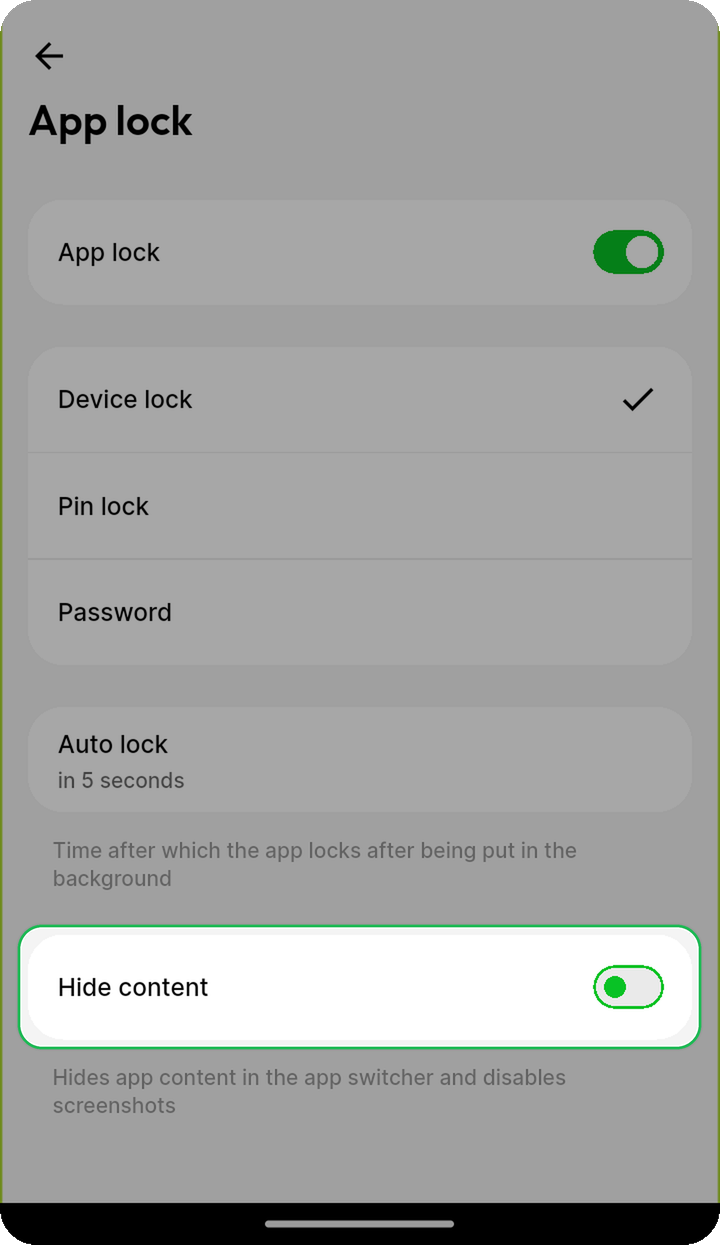
Hide content is currently available only in the app (mobile).
Related topics
- Account overview
- Passkeys
- Guest view - Let someone browse specific photos without app lock