
Features
This page outlines the key features available in Ensu. Most features work the same on every platform; where they differ, the platform is called out.
On-device inference
The model that answers your messages runs on your own phone, tablet, or computer. There is no network call to Ente or any other AI service for inference. Once you have downloaded the model, the chat works fully offline, including on flights and in places without connectivity.
Learn more in How it works.
Cross-platform
Ensu runs natively on iOS, Android, macOS, Windows, and Linux, plus an experimental web build at ensu.ente.com. The desktop and web UIs share the same code; iOS and Android each have a native UI built on the same shared Rust inference core, so behavior is consistent across platforms.
No account required
You can use Ensu without signing in. There is no Ente account in the chat flow, no usage limit, and no cost. Sign-in exists in the app for the future sync feature, but it is optional.
Markdown and math rendering
Assistant responses are rendered as Markdown. Headings, lists, tables, bold and italic text, links, blockquotes, and fenced code blocks are formatted inline. Code blocks include a copy button.
Inline and block math is rendered with KaTeX, so equations the model produces (for example, $E = mc^2$ or display-style derivations) appear as typeset math rather than raw LaTeX.
Image attachments (iOS, Android, desktop)
Attach images to your messages and ask the model about them.
On mobile:
- Tap the attachment icon in the composer.
- Pick one or more images from your library, or take a photo.
- The selected images appear as previews above the text field. Tap a preview to remove it.
- Send your message as usual.
On desktop:
- Click the attachment icon in the composer and choose an image.
- Drag and drop images onto the composer.
- A progress indicator appears while Ensu prepares the image.
- Click a preview thumbnail to expand it full-screen, or click the close icon to remove it.
The image is resized to the model's input size on your device before the model sees it. The image data never leaves the device. Image attachments are not available on the web version yet.
Voice input (iOS, Android)
Tap the microphone in the chat composer and speak your prompt. Ensu transcribes your voice locally and inserts the text into the composer, where you can edit before sending.
On iOS and Android, the first use of voice input downloads the Parakeet transcription model and the Silero VAD model from models.ente.com if they are not already cached. After that, transcription works fully offline. Your voice is never sent to Ente or any cloud transcription service.
Voice input is not available on desktop or the web version.
Chat with your Markdown notes (iOS, Android, desktop)
Ensu can answer questions using Markdown notes stored in a folder on your device. Open Settings → Your Notes, choose Add notes folder, and select the folder you want Ensu to index.
Ensu finds relevant passages locally and includes source links with grounded answers. It reads and indexes the Markdown files without modifying the originals. Removing a folder from Ensu also leaves the source files untouched.
Your Notes is not available on the web version yet.
Ensu Packs (iOS, Android, desktop)
Ensu Packs are optional, downloadable knowledge packs that help ground answers in sources such as Wikipedia and Wikibooks. Open Settings → Ensu Packs to download a pack and enable or disable it. Grounded answers include source attribution.
Ensu Packs are not available on the web version yet.
Resumable model downloads
The initial model download (and any later model switch) resumes automatically if interrupted. You can close the app, lose connection, restart your device, or quit during the download; Ensu picks it up where it left off on the next launch.
Native downloads use ranged HTTP requests and retry automatically. The web version stores the model in the browser's Origin Private File System so it is reused across visits.
Chat sessions and sidebar
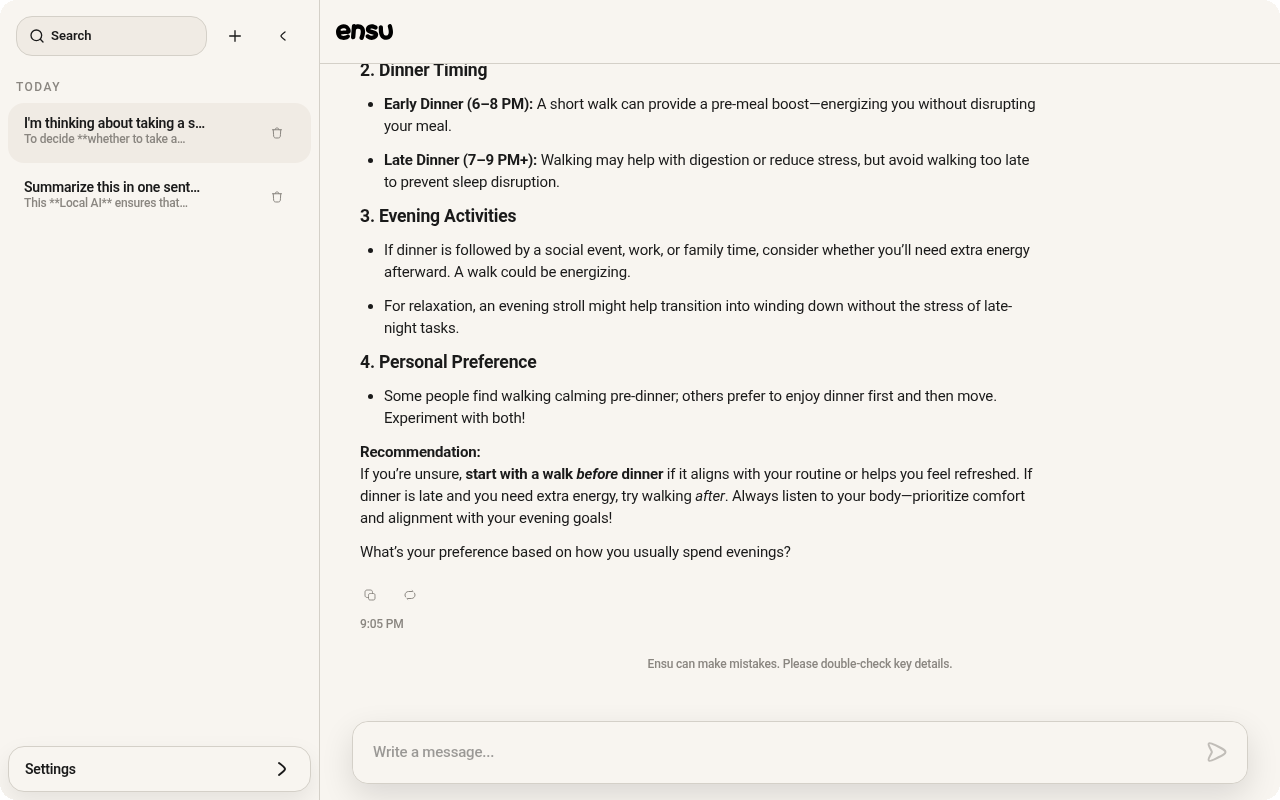
Every conversation is a separate session, listed in the sidebar.
- On desktop: the sidebar lives on the left edge of the window. Click the handle to expand or collapse it. Sessions are grouped by recency (Today, Yesterday, This week, This month, Older).
- On mobile: open the sidebar with the menu icon in the top-left. Same grouping.
Click or tap a session to switch to it. The composer remembers any in-progress text per session.
Session search
Click the search icon at the top of the sidebar to filter sessions by title. The title is generated automatically from the first messages of each chat.
On desktop, use the rename button beside a session in the sidebar to give the chat your own title.
Edit messages
You can edit any message you sent. Tap the edit icon below your message to open it in the composer; sending creates a new branch of the conversation from that point.
The original branch is still available via the branch switcher. Learn more in Branching.
Retry an assistant response
If a response is not what you wanted, tap the retry icon below it. Ensu generates a fresh response with the same conversation history, creating a new branch you can switch between.
Branching
When you edit a user message or retry an assistant message, Ensu keeps the original alongside the new version, creating a branch in the conversation tree. Tap the arrow controls next to a message to switch between branches; the message counter shows your position (for example, 2/3).
Branches are local and persist with the rest of the chat history.
Copy
Every message has a copy button. Tap or click it to copy the message text to your clipboard. Code blocks also have their own copy button in the corner of the block.
Stop generation
While a response is streaming, the send button turns into a stop button. Press it to end generation immediately. The partial response is kept.
Local chat history
All chats are saved on your device automatically. Open the sidebar, pick an older session, and scroll back to read or continue it.
You can delete individual sessions from the sidebar. Long-press (mobile) or use the trash icon (desktop) on a session, then confirm.
App updates
The desktop apps (macOS, Linux, Windows) update themselves automatically. You can also check for updates manually under Settings → Check for updates.
The mobile apps update through their app stores. APKs downloaded directly from GitHub releases update when you install a newer build manually; learn more in Verify the Ensu Android APK.
The in-app What's new dialog shows the latest changelog entries on each platform.
Privacy by design
- No account is required.
- No analytics, no telemetry, and no tracking of your prompts.
- Chats, attachments, and voice input never leave your device.
- Chat models download from Hugging Face. Voice input on iOS and Android downloads the Parakeet and Silero VAD transcription models from
models.ente.comif they are not cached. Ensu Packs are downloaded only when you choose to install them.
Learn more in How it works.
Open source
The entire Ensu codebase is in Ente's open source monorepo on GitHub, including the Rust inference core, the platform UIs, and the web app. You can read it, build it, audit it, and contribute to it.
Sync and backup (planned)
End-to-end encrypted sync of your chats across devices, using your Ente account, has been built and is ready for release. It is not enabled in the current build because we want feedback on the product direction first. When it ships:
- Sync will be opt-in and tied to your Ente account.
- Chats will be end-to-end encrypted with the same library Ente Photos and Auth use.
- Existing local chats will be picked up and backed up automatically.
- Sync will be self-hostable.
Learn more in the FAQ.
Related topics
- Introduction: install, send your first message, and prompts to try.
- How it works: on-device inference and what is stored where.
- FAQ: privacy, models, sync, and troubleshooting.